To be added to a Passport, an item must first be created in the main list of Items. Items can be divided in 2 types: items that affect the compliance status of a worker Passport (Requirements) and items that don’t (Other Items).
Items are specific to Passport types: Worker, Equipment, or Contractor, but the process is similar for all types with some particularities and options for worker items.
Left menu: [Module] ⇒ Top sub-menu: Items
- Click the blue + Item button at the top of the window to open the item creation window.
- Select the type of item you want to create in the scroll down list (with an attached file or form).
- Add a title to name your item.
- Titles are mandatory in both English and French.
- A French version allows French speaking users to see the item in their language.
- If you don’t have French speaking users, simply copy the English title in the French field.
or
- For a form, select the form.
- The list of forms offered is your list of created forms in the respective module.
- Add a description (optional).
- For Contractor’s items, the description can be seen by contractors to help them understand what is exactly the requirement you are seeking.
- Select a pre-set duration (if applicable).
- When set, the item expiry date is automatically calculated once an issue date is entered.
- Click Save to register your information and exit.
The item has been created and added to your Items list and can be directly added to a passport as an Other Item or added to a Requirement List to be added to a worker passport as a Requirement.
Additional options for Worker Items
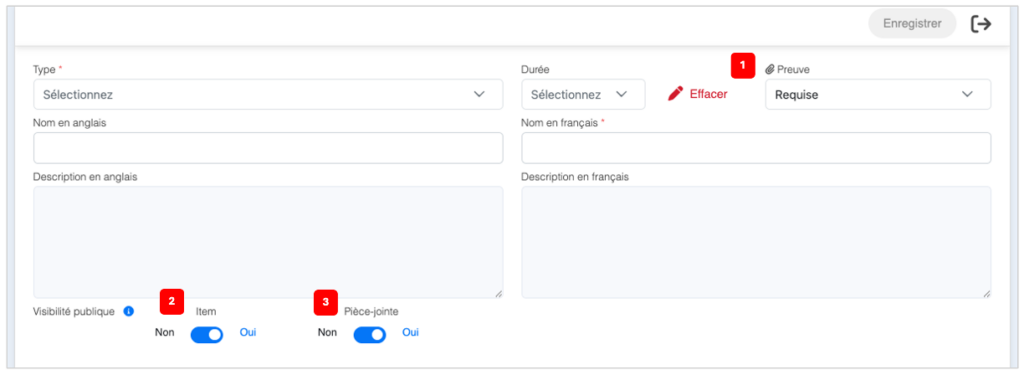
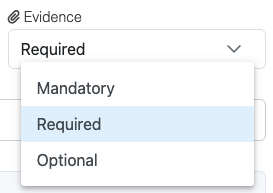
- Select if the obligation level of the evidence 1️⃣ (attachment):
- Mandatory: the item will be non-compliant if attachment is missing.
- Required: the attachment is mandatory, but the item will remain compliant if the attachment is missing.
- Optional: the item will not be non-compliant if the attachment is missing.
- Select if the Item will have a Public visibility 2️⃣ or if it will only be visible to Users with the Admin access rights.
- Select if the Attachment will have a Public visibility 3️⃣ or if it will only be visible to Users with the Admin access rights.
Related topics