To report, log, and manage an Health, Safety, Environmental, or Quality Event, you must first create the necessary Event Templates that can be customized to your work environment and procedures.
Left menu: HSEQ ⇒ Top sub-menu: Modèles
- Click the +Template blue button.
- Name the Template (you can modify it later) and click Save to register the new template and access its edition window.
- The Template name will be added to the Main Event list that can be reported.
The Event Template edition window allows to configure and customize several elements, such as the questions and event declaration forms, as well as the users who can access the event or receive notifications related to the event.
The window is divided into 8 sections:
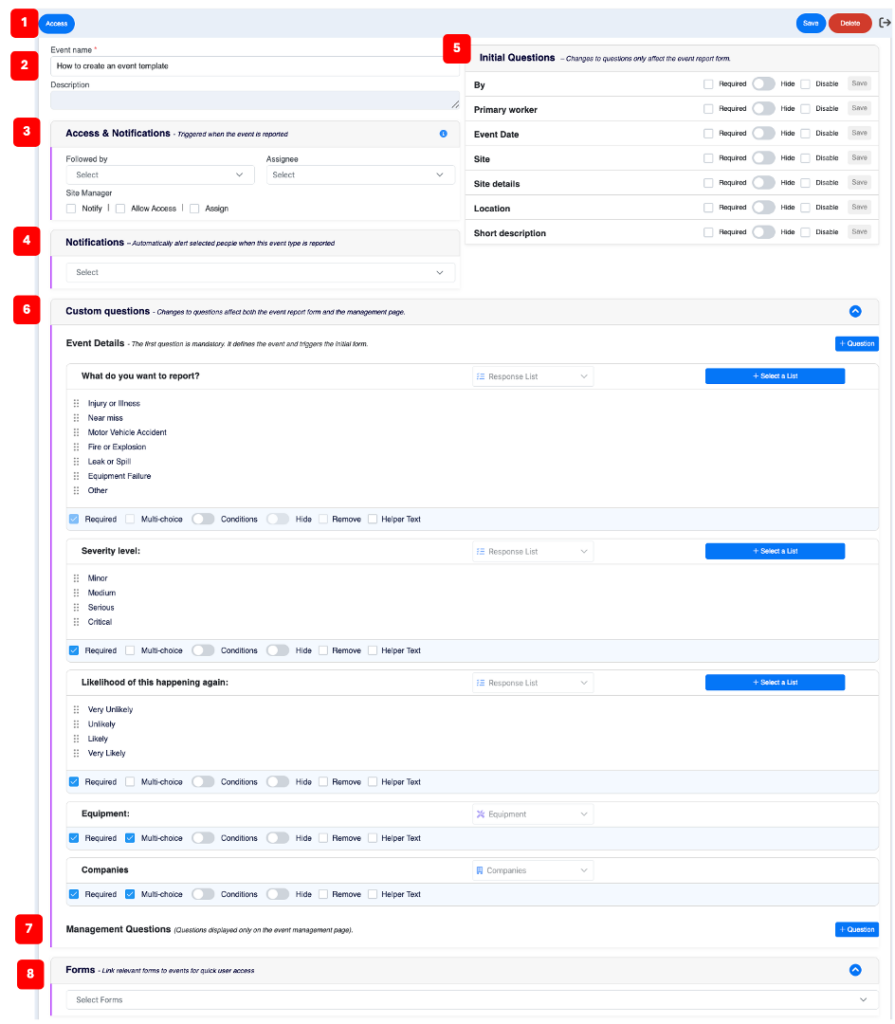
1️⃣ Access (blue button)
- Allows you to restrict who can report the event.
2️⃣ Event name
- Name assigned to the model, which can be modified.
- The Description field allows to add information describing the template. These notes appear only on the template editing screen.
3️⃣ Access & Notifications
- Followed by: Select the users who will have access to the reported events management window and who will be notified when an event is reported and when its status changes (*).
- Assignee: Assign a default person responsible for managing the event (*).
- Site Manager: allows the user associated with the site selected in the event reporting question to be notified, added to the “Followed by” list, or assigned as the default person in charge (*).
(*) To access an event where they are designated as a Follower or Person in Charge, a user must have manager-level access to the HSEQ module (see Users – Platform Access Management).
4️⃣ Notifications
- Allows to select the users who will be notified when an event is reported.
5️⃣ Initial Questions
- A set of questions asked when reporting an event, used to collect critical information about that event. The answers to these questions appear in the management window for the reported event and are available as fields (columns) and filters in the event table.
- Each question can be:
- Modified (then click Save at the end of the question line to save your changes).
- Marked as mandatory (forces the reporter to provide an answer in order to submit their declaration).
- Hidden (will not be asked when reporting the event but will appear in the management window for the declared event, where it can be edited).
- Removed (will not be asked when reporting the event AND will not appear in the management window for the declared event).
6️⃣ Custom Questions
- A series of questions used to add important information for characterizing an event at the time of reporting; the answers are available as fields (columns) and filters in the event table and in the management window for a reported event.
- 1st question – Type of Event
- This is a mandatory question because it defines the event type and allows for the association of supplementary forms—based on the selected answer(s)—to document the event.
- 2nd and 3rd questions – Severity and Recurrence
- Allows for a quick assessment of the risk associated with an event.
- 4th question – Equipments
- The choice of answers to this question is the list of equipment passports (basic or complete) created in the Equipment module.
- 5th question – Companies
- The available answers to this question consist of the list of companies entered in the Organization / Company Directory section, supplemented—depending on your activations—by:
- your list of contractor passports in the Contractor module.
- Your list of clients in the Contractor module (with the Our Passport option).
- The available answers to this question consist of the list of companies entered in the Organization / Company Directory section, supplemented—depending on your activations—by:
- All questions can be modified, and the default list of the first three (Type, Severity, and Recurrence) can be changed, but the response format for each is fixed.
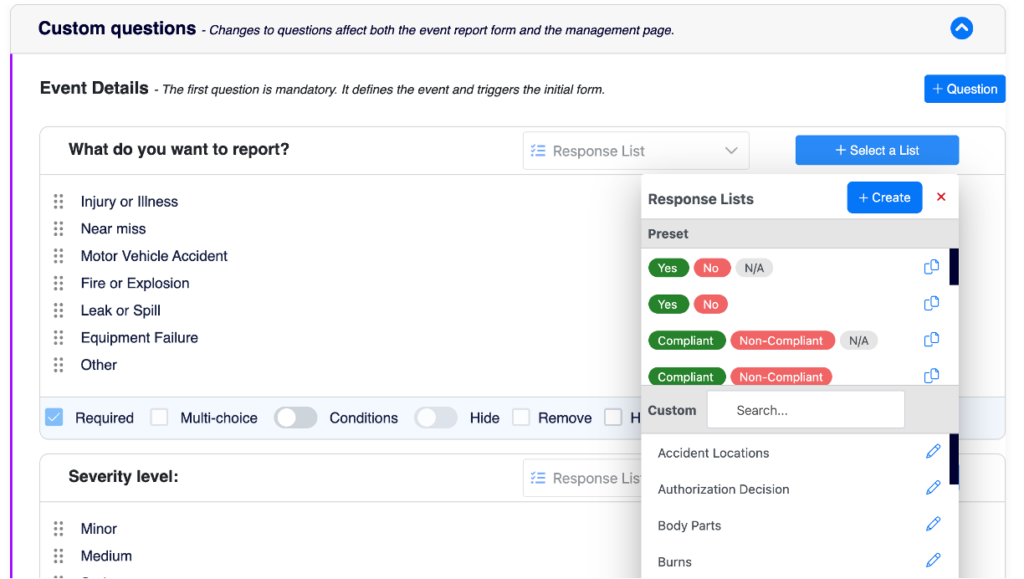
- To change a default list:
- Click the + Select a List blue button to the right of the question.
- Then select another list or click the +Create button to start a new list.
- To change a default list:
- D’autres questions peuvent aussi être ajoutées.
- Cliquez sur le bouton bleu + Question en haut à droite de la section Questions personnalisées.
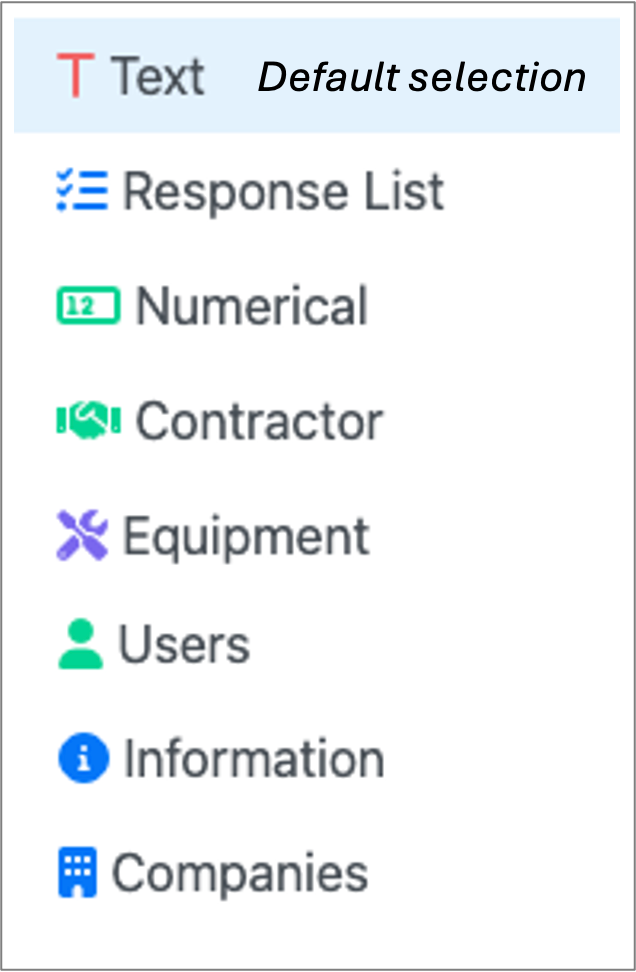
- Les formats de réponse possibles à ces questions sont :
- All custom questions (except the first one – Type) can also be:
- Marked as mandatory (requires the filer to provide an answer in order to submit the declaration).
- Offer multiple-choice answers.
- Hidden (it will not be asked during the declaration process but will appear—and remain editable—in the reported event management window).
- Removed (it will not be asked during the declaration process AND will not appear in the reported event management window).
- Include conditional sub-levels (based on specific rules) depending on the answers selected.
- Include explanatory text to assist the respondent.

7️⃣ Management Questions
- These questions allow for the addition of follow-up points for managing a reported event.
- They are displayed and can be answered in the dedicated section of the management window for a reported event.
- The available response formats are the same as those for added questions, plus a “Checkbox” format useful for creating a checklist.
- These questions can be marked as mandatory (forcing the filer to answer in order to submit their declaration).
8️⃣ Forms
- The forms selected in this section will be automatically added to the section dedicated to forms for a registered event.