To log in to NeXafe (desktop or mobile app), Users must have an access right granted by assigning a Role & Permissions to their profile. Different Roles defines what they can see and do within the platform. There is 3 pre-set roles and you can create as many custom roles as you want.
To view the 3 Pre-set Roles (see link at the end on how to create custom roles)
Left menu: Users ⇒ Top sub-menu: Roles & Permissions
- SuperAdmin
- Default role assigned by the system to the initial User.
- Grants full access to the platform.
- An account MUST have a SuperAdmin User.
- Company Admin – All workers
- Base Role for other general access to the platform.
- Worker Portal (only with the Workers module activated)
- Grants access to a Worker to her/his Passport and Profile.
To assign Roles to users
Left menu: Users ⇒ Top sub-menu: Users
- Option 1: Click open a User Profile.
- Roll down to the Roles section and click the Assign/Remove blue button to open the selection list (your list of roles).
- Assign (or Remove) a Role (repeat to assign / remove more than 1 role).
- Option 2: Check the box of one or several Users.
- Then click the Assign Roles blue button (remains grey until a User checkbox is checked).
- Assign one or many Roles and click Close to exit the Assignment modal.
Once a role is assigned:
- An email is automatically sent to the user with a link to create her/his Password.
- The link is valid for 72 hours only.
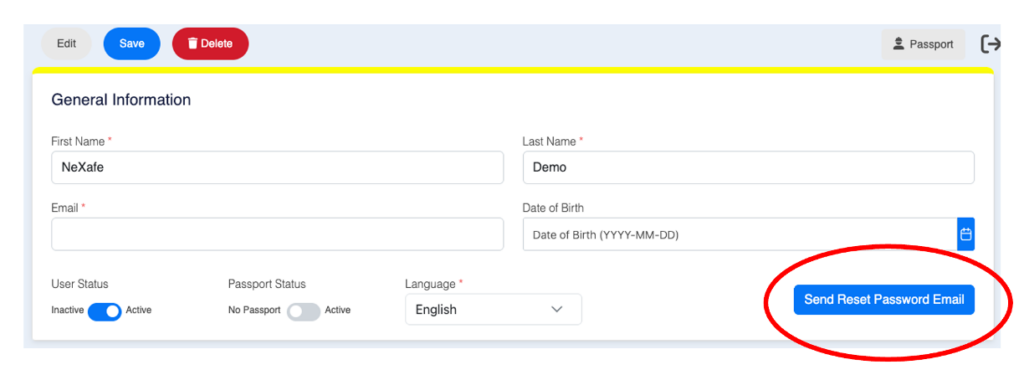
- To resend the link to create the Password (or to reset an existing Password), click open the User Profile and click the Send Reset Password Email at the bottom rigth of the General Information Section.
- Users can log in the platform through:
- The NeXafe Mobile App (available on Google store or Apple store) or
- Through a browser such as Chrome, Safari, or Edge.
Related topics