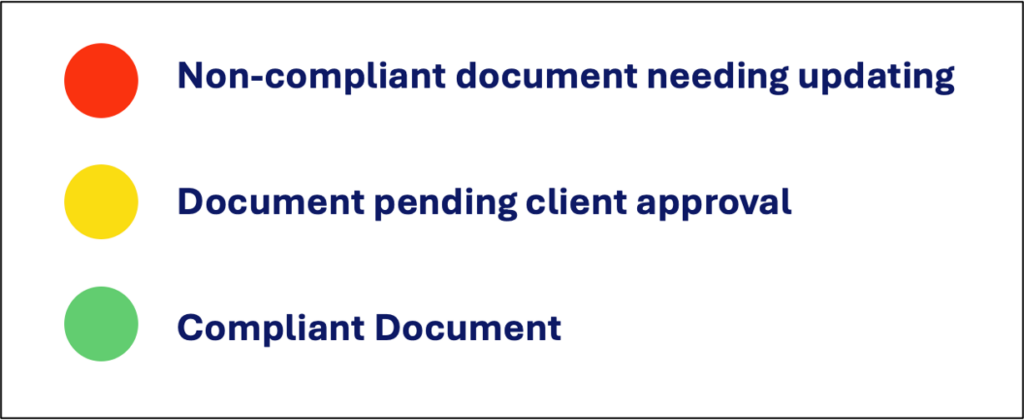
Clients with an active Collaboration can post requests for documents in your Passport (Requirements). If a required document is already in your Passport, it will automatically be shared with the requiring client and appear in your Pending Requirements list under the client’s name (marked with a yellow dot until it is approved by the client). If the required document in not already in your Passport, you will need to add it.
Left menu: Contractors ⇒ Top sub-menu: Pending Requirements
- Click on the requirement (compliance dot will be red) to open the updating window.
- If the document is required by multiple clients at the same time – click on anyone of the to update all requests at once.
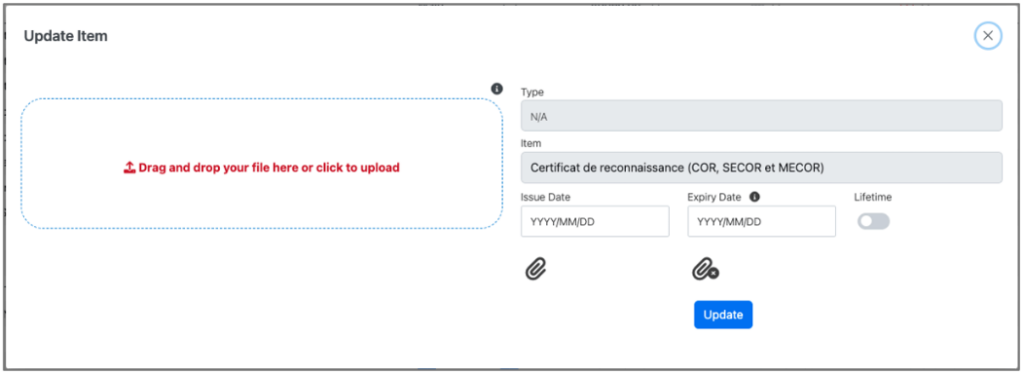
- Attach your document by dragging and dropping the file in the dotted line zone or click in the zone to open a file selection window.
- See the attached document by clicking the blue paper clip (the left one) to ensure that it is the right one or to consult the issue and expiry dates (you can delete the attached file by clicking the red paper clip (the right one mark with an X).
- Add the Issue Date and the Expiry Date.
- If the document has a pre-set validity period, the expiry date will be automatically calculated once you enter the issue date.
- If no expiry date applies, flicker on the Lifetime button.
- Click Update to save your changes.
The client is automatically notified that you have submitted the document for approval.
- Back in the list, the dot of the document will now be yellow to indicate that the document has been submitted and is pending approval by the client who has required it.
- Client MUST approve the submitted documents as proof of their diligent responsibility.
- Once approved, the document will disappear from the Pending Requirements list and will be in your Passport with a green dot.
Document Rejected
- Clients can rejected a submitted document if it doesn’t meet their need or expectation.
- In this case:
- The compliance status of the requirement as well as most of its information fields will be red.
- The rejection date will be displayed.
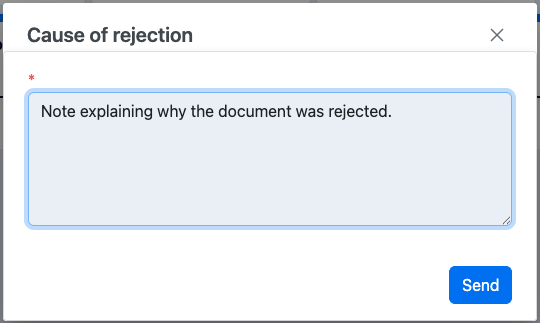
- The Reason why (note icon) will be activated and clickable to read the note.

- Redo the updating process to fix the situation and submit again your document.
- The process will repeat until the document is approved by your client.
💡 Good to know
- The system will send a notification when a document is about to expire based on the Expiry Date.
_____
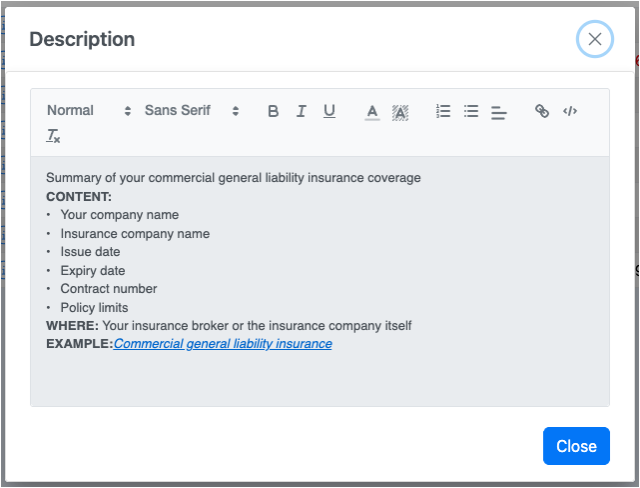
- You can click on the Information icon beside a requirement to access a more detailled description of the requested item, a link to an example of the document, and a link to the website where to obtain the document (when relevant).