An Item that is not a requirement can be added to a Worker or an Equipement Passport in the Other Items section either directly with its updating information or by batch (one or multiple items into one or multiples passports) by using a temporary Requirement List.
Non-required items for contractor passports can only by added by the contractor.
Direct addition to a Passport
Left menu: [Selected Modules] ⇒ Top sub-menu: Passports
- Click the selected worker to open the Passport.
- Click the Edit blue button to set the Passport to edit mode.
- Click the +Item blue button (grey inactive until the edit mode is on) to open the item window.
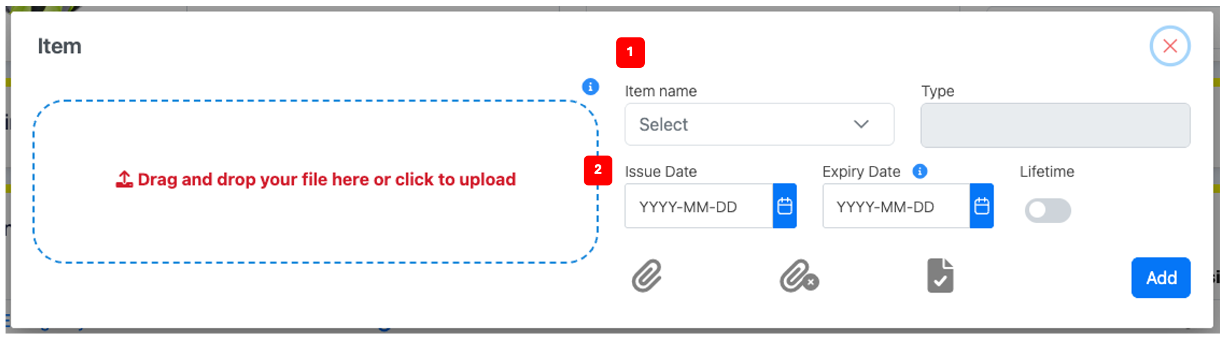
- Select the item to add 1️⃣.
- Add the Issue and Expiry Dates 2️⃣.
- For items with a pre-set validity period, the expiry date is automatically calculated once you enter the issue date.
- If no expiry date applies, flicker on the Lifetime button.
- At this stage, you can
- Click the Add blue button to save your changes and add the item.
- OR
- Attach your document by dragging and dropping the file in the dotted line zone or click in the zone to open a file selection window.
- See the attached document by clicking the blue paper clip to ensure that it is the right one or to consult the issue and expiry dates (you can delete the attached file by clicking the red paper clip (the right one mark with an X).
- Click the Pre-Approved icon to approve immediately the updating.
- If not, the updated requirement / item will have a Pending Approval status (yellow dot) and will appear in your Approval table until approved.
- Click the Add blue button to save your changes.
- Attach your document by dragging and dropping the file in the dotted line zone or click in the zone to open a file selection window.
Using temporary requirement list
- Create a requirement list with the item(s) – See how below.
- Assign the requirement list to the Passport(s) – See how below.
- The item(s) will be added to the Passport(s) as requirements.
- Delete the items from the temporary Requirement List then delete the List – See how below.
- The item(s) are moved in the Passport(s) from the Requirements section to the Other Items section and are ready to be updated – See how below.
Related Topics