To be added to Passports and tracked as Requirements, Documents / items must first be added to a Requirement List which serves as a vehicle for batch assignment. Once a
Specific Requirement List must be created in each module: Workers, Equipment, and Contractors. Once created, it is possible to modify its name, to add/modify its description, to add/delete items, or to delete the list.
To create a Requirement List
Left menu: [Selected Module] ⇒ Top sub-menu: Requirement lists
- Click the blue + List button at the top of the window.
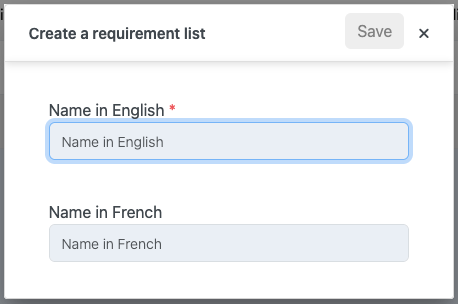
- The list creation window will open.
- Name your list (French version is optional) and click Save.
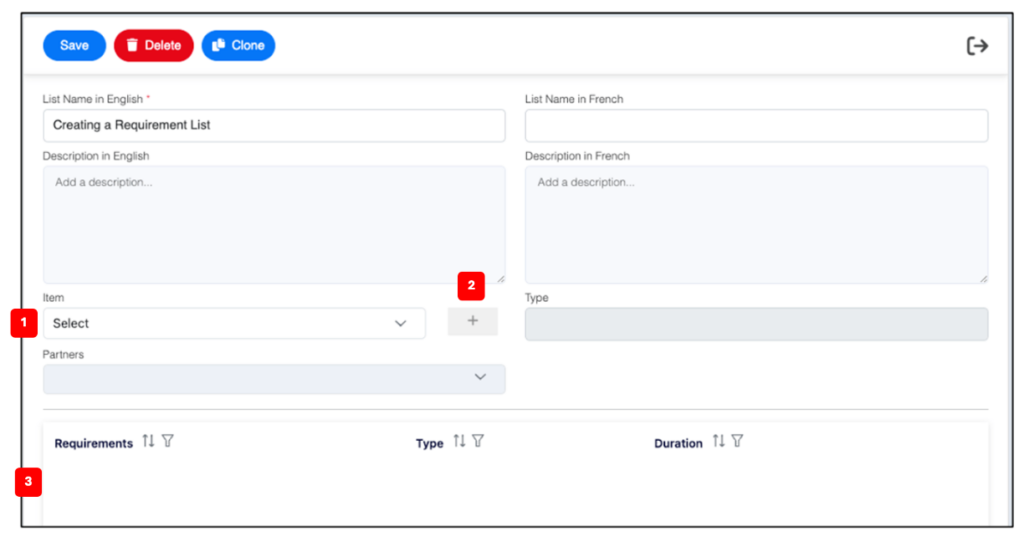
- In the List window, select an Item 1️⃣ from the list then click the + icon 2️⃣ to add the item to the list.
- The added items will appear in the list of Items 3️⃣ included in the Requirement list.
- Click the Exit icon in the top right corner to close the List window and go back to your Requirement List table.
To modify or delete a Requirement List
- Click the Requirement List to open its updating window.
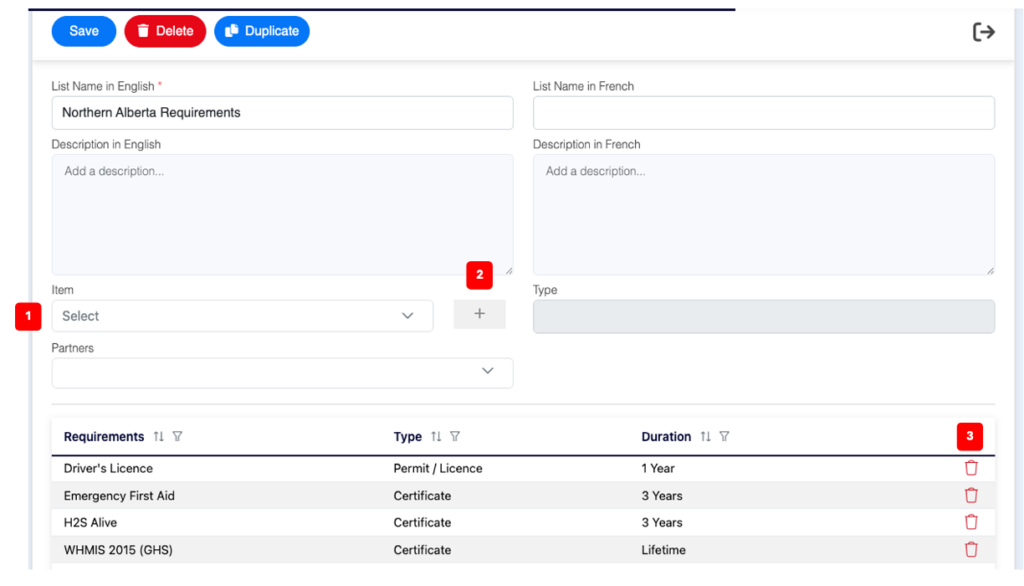
- To add an Item 1️⃣, select from the list then click the + button 2️⃣ to add the item to the list.
- The added item will appear below in the list of Items included in the Requirement list.
- To delete an Item, click the trash can 3️⃣ icon on the row of the item.
- To delete the list, first delete all items then click the Delete red button in the header.
💡 Good to know
- Adding items to (or deleting from) an existing list, automatically affects the passports to which the list is assigned to:
- Added items: are added as new requirements.
- Deleted items: are moved to the Other Items section of the passport.
- You cannot delete an assigned Requirement List.
_____
- You can add the same item to multiple requirement list. If you assign several list containing the same item to a passport, the item will be posted only once in the passport.
Related Topics