NeXafe Form Builder allows to design forms to your specific needs. Even if forms are specific to each module: HSEQ, Workers, Equipment, and Contractors, the design process is similar for all modules except for some particularities.
Left menu: [Module] ⇒ Top sub-menu: Forms
- Click a form’s name to open it in edit mode.
Structure
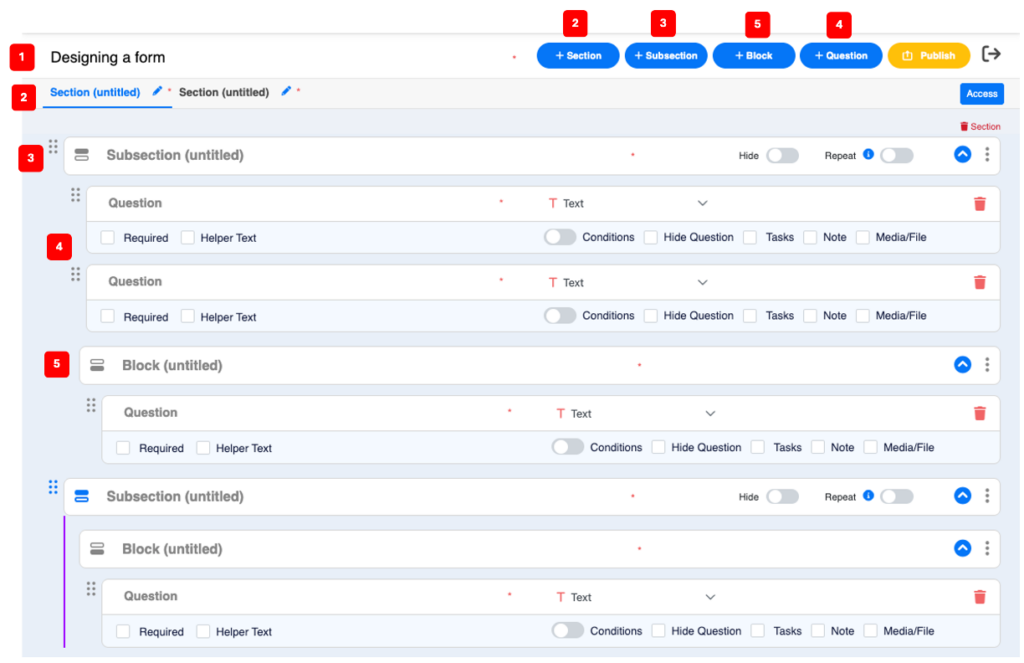
Forms have a unique name 1️⃣ and are divided into sections 2️⃣ and sub-sections 3️⃣. A form can have multiple sections and each sections have multiple sub-sections, but all forms are composed of at least 1 section with 1 sub-section. Questions 4️⃣ are inserted in sub-sections and can be grouped in a block 5️⃣ under a common header.
- To modify the name of a form, click and edit directly in the field of the name 1️⃣.
- To add a section, click the +section 2️⃣ blue button.
- To name or modify the name of a section, click the blue pencil icon beside the section to open the edit window.
- To insert a sub-section, click on the targeted section title (the name turns blue) then click the +Subsection 3️⃣ blue button.
- Click in the subsection field to name it (optional).
- To insert a question, click in the targeted subsection or block field (cursor position) then click the +Question 4️⃣ blue button.
- To insert a block, click in the targeted subsection field then click the +block 5️⃣ blue button.
- Click in the subsection field to name it (optional).
💡 Good to know
- You can move a section by clicking and holding on its title and dragging and releasing it to its new position and move sub-sections, blocks, and questions by clicking and holding the 6-dot icon in front it and dragging and releasing it to its new position.
Answer Format Options to Questions
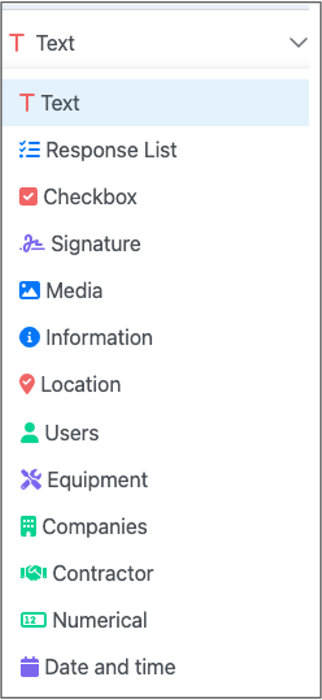
- Text: Default format. Adds a generic text field.
- Response List: Adds a list of clickable selections (see how to create and manage Lists below).
- Checkkox: Adds a checkbox in fornt of the question.
- Signature: Question will not appear in the form (for draft stages).
- Tasks: Adds the option to manually create a task from the form.
- Note: Adds the option to manually write a note in relation to the question in the form..
- Media/File: Adds the option to upload a file or take a picture (mobile device).

Question Options

- Required: An answer is mandatory in order to submit the form.
- Helper Text: Brief directions to assist the respondent.
- Conditions: Adds conditional question(s) or action(s) depending on the answers.
- Hide Question: Question will not appear in the form (for draft stages).
- Tasks: Adds the option to manually create a task from the form.
- Note: Adds the option to manually write a note in relation to the question in the form..
- Media/File: Adds the option to upload a file or take a picture (mobile device).
- To modify the name of a form, click and edit directly in the field of the name 1️⃣.
- To add a section, click the +section 2️⃣ blue button.
- To name or modify the name of a section, click the blue pencil icon beside the section to open the edit window.
Related Topics