You can integrate your Saved Reports (see how to save reports below) into custom notifications to be sent on a regular schedule to selected users.
Left menu: Notifications ⇒ Top sub-menu: Reports
- Click the +Add blue button to open a new notification window
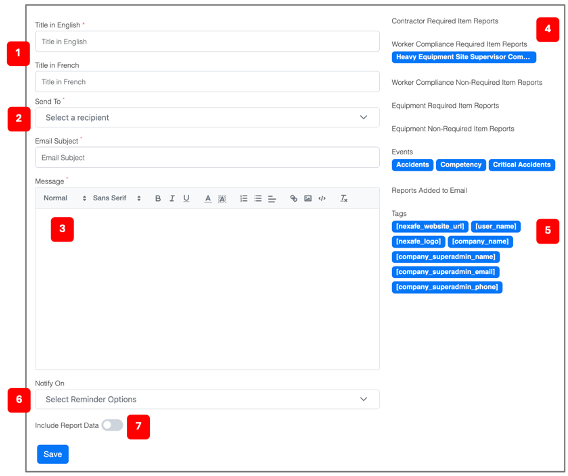
- Give a title 1️⃣ to your notification (it will be object of the email).
- Select the recipient 2️⃣ of the notification (you can select multiple users and/or groups – see below how to create groups).
- Write the content 3️⃣ of your notification.
- Add the link(s) to report(s) 4️⃣ by clicking on the report(s) name.
- Integrate tag(s) 5️⃣ in your message.
- Select to which frequency 6️⃣ the notification will be sent.
- Slide right to integrate the report data 7️⃣ directly in the notification content.
- Click on Save to record your notification.
💡 Good to know
- You can see the sent notifications in the History tab of your notifications module.
Related Topics